Add New Products
Last updated: September 25, 2025
In order to run a product-based ad unit (like Product Listing Ads), you must first ad your product list to your account.
Select Advertiser Tools > Products from the left-hand menu.
Click Add Products. You’ll see two options:
Manual entry
What is a Kohl's Web ID?
A Kohl's Web ID is Kohl's internal product code used on Kohls.com. You can find the Kohl's Web ID by checking the product page on Kohls.com or looking at the product URL.Only Kohl's Web IDs are supported - other IDs like UPCs will return an error ("Failed to get entity"). Make sure the products exist in the Kohl's catalog (on Kohls.com) before adding. You can find the Kohl's Web ID on the product page or in the product URL on Kohls.com.
CSV upload
For bulk uploads, prep a CSV with the Kohl's Web ID in the first column (one per row). Upload your file to add multiple products in one step.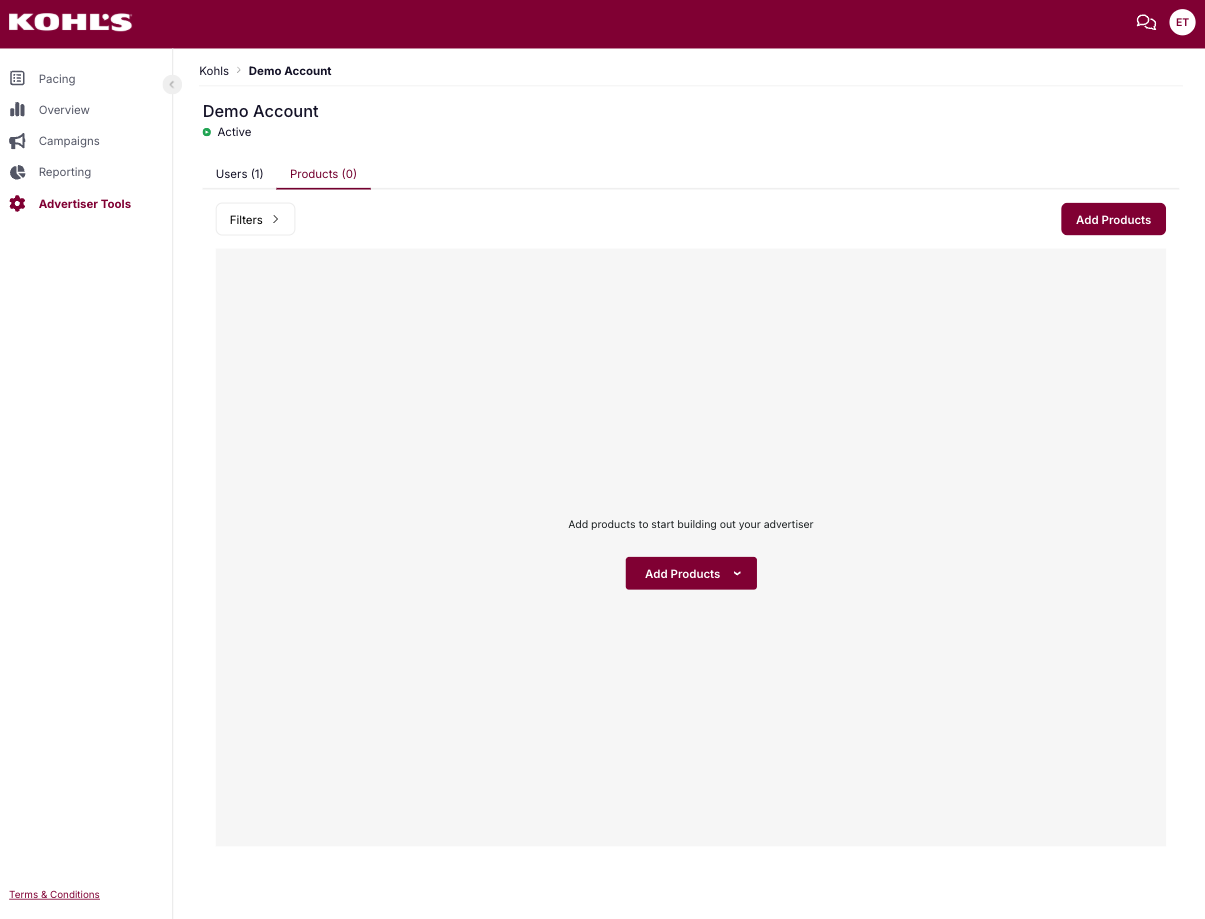
AEA (Auto Entity Assignment)
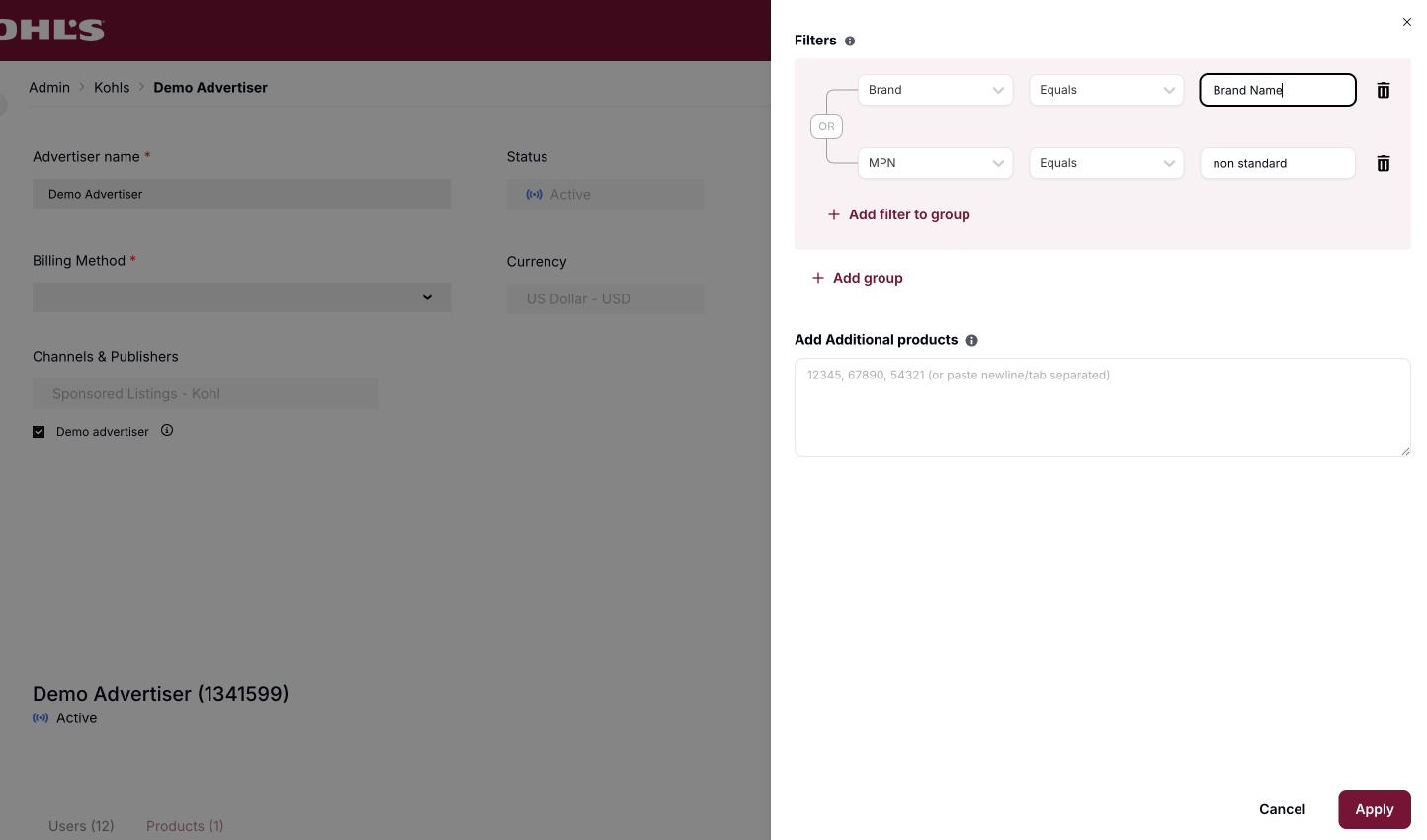
AEA automatically adds products to an advertiser’s account whenever new feed data is uploaded. It works by matching products against filters set at the advertiser level.For example, if an advertiser has a filter set to “Kohl’s advertiser ID 1234”, then any new products with that ID will be added to their account automatically.
To enable the AEA feature:
Go to the Admin Tool.
Select the advertiser.
Click the three vertical dots in the top-right corner.
Choose Edit Advertiser Product Filters.
Enter the brand name in the exact format (case-sensitive).
Set mpn = non_standard.
Click apply