Building & Reviewing Reports
Last updated: September 2, 2026
Review Overall Performance
Use the Overview page to review performance across one or multiple accounts.
The performance graph shows results over time, while the key metrics below the graph provide a snapshot of performance and period-over-period trends.
You can customize your view using:
Time Frame: Select a standard reporting period, such as Year to Date or Last 30 Days, or choose a custom date range.
Accounts: If you have access to multiple accounts, use the account dropdown in the upper-right corner to select the accounts you want to review.
Attribution Windows: When reviewing campaign performance, extend your reporting date range beyond the campaign end date to capture conversions and revenue attributed after media delivery has ended.
For example, if a campaign runs from 1/1–1/31, extend the reporting period beyond 1/31 to capture additional attributed activity.
If Date is included as a dimension, you may see $0 in ad spend after the campaign has ended while attributed conversions, revenue, and other conversion metrics continue to populate.
Note: Spend is invoiced by Kohl’s fiscal month. Refer to the Kohl’s Fiscal Calendar below when reconciling invoices.
Build a Custom Reporting Table
On the Reporting page, you can build custom reports to analyze campaign performance in greater detail and identify opportunities for optimization.
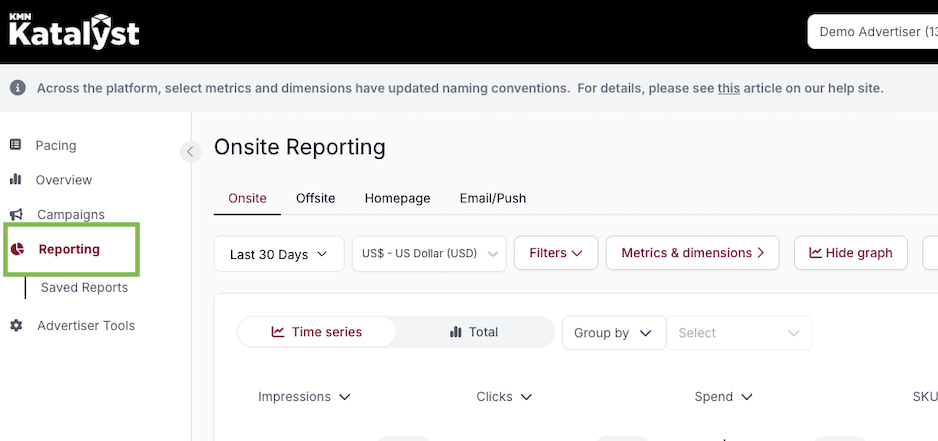
Configure Your Custom Report
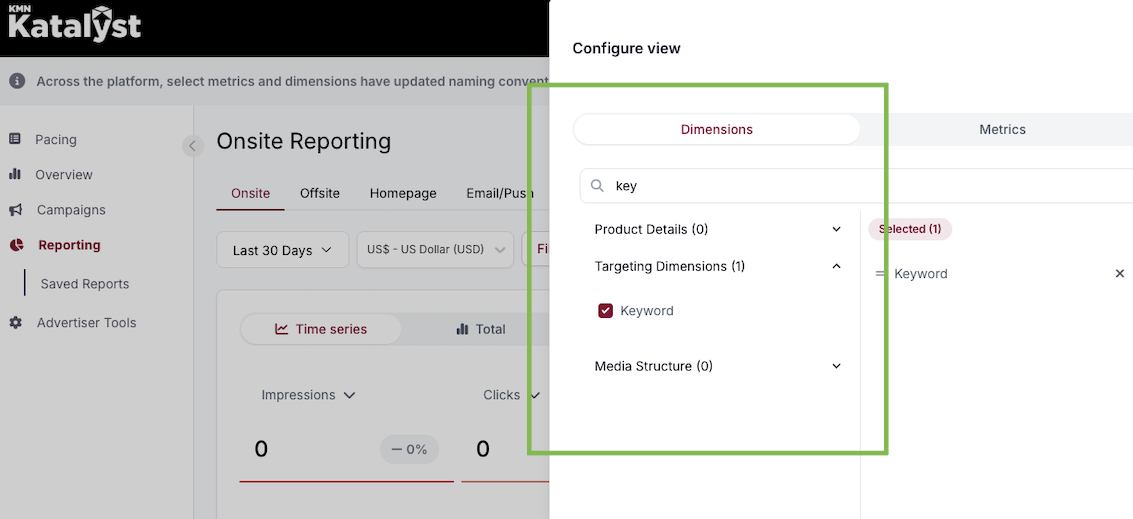
Select Dimensions
Dimensions determine how your report data is grouped.
For example, adding Keyword as a dimension allows you to review performance by keyword and identify which search terms are driving impressions, clicks, and other performance metrics.
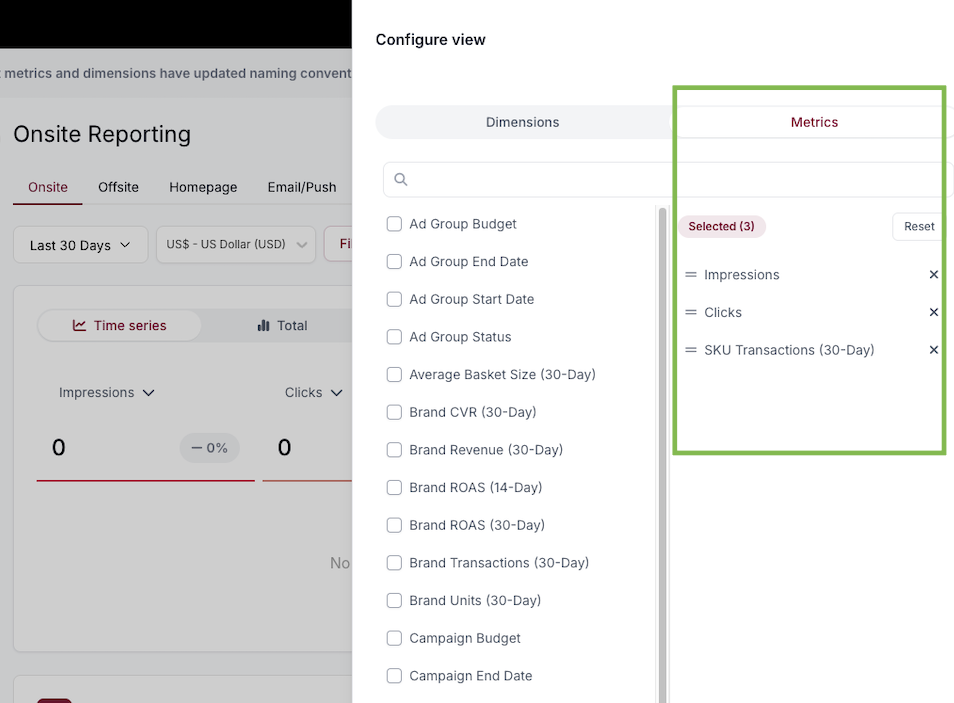
Select Metrics
Metrics determine which performance values are displayed in your report.
Your reporting table is preconfigured with standard advertising metrics. You can add or remove metrics under Filters and Dimensions to customize the report for your needs.
For additional information about available dimensions and metrics, refer to:
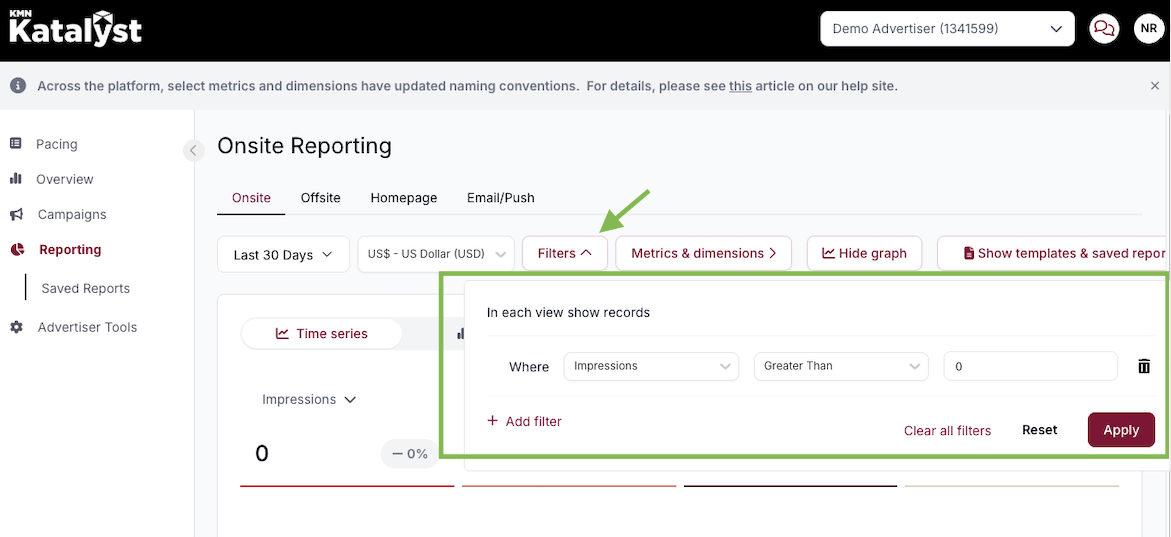
Apply Filters
Use filters to narrow your report to the data you want to review.
For example, you can:
Include only campaigns with Impressions > 0
Filter to a specific campaign or product
Review performance for a specific product name
Select Time Range
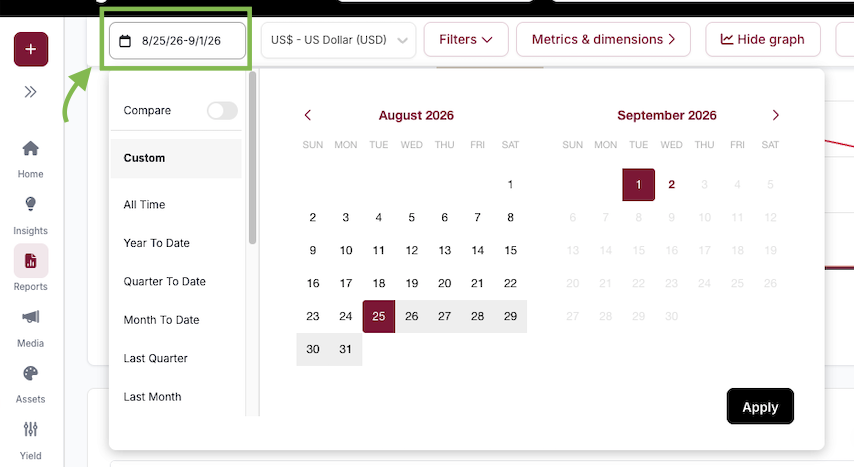
To view data for a specific period, select one of the available time range options or choose a custom date range using the calendar.
Display the Graph
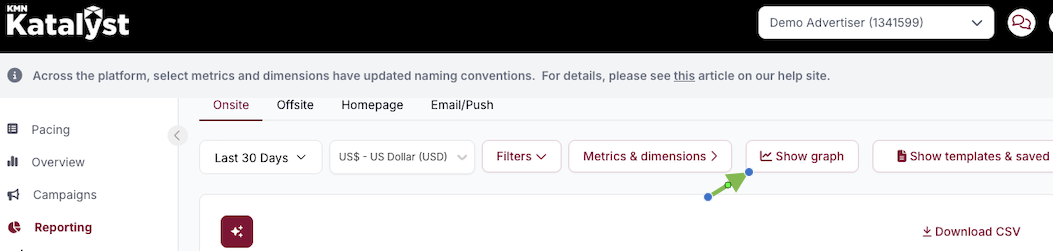
To visualize the data in your reporting table, select Show Graph.
Sort Your Data
Select any column header to sort the table by that column's values.
Save Reports
Select Save Report to save your current reporting configuration. Saved reports can be accessed later from the Saved Reports section under Reporting.
Download Report Data
Select Download CSV to export the data from your report.
Receive Reports via Email
Saved reports can also be scheduled for recurring email delivery, making it easier to share performance updates with your team.
For instructions, see Scheduled Reports.
Reporting FAQs
For additional reporting guidance, see the Reporting FAQ.
What is the reporting attribution window?
The default attribution window across Kohl’s Media Network (KMN) ad types is 30 days. Depending on the ad type, attribution may use either a last-click or halo same-brand attribution model.
2026 Kohl’s Fiscal Calendar
Use the following fiscal calendar when reviewing spend and reconciling monthly invoices.
Fiscal Month | Start Date | End Date |
|---|---|---|
February | 2/1/26 | 2/28/26 |
March | 3/1/26 | 4/4/26 |
April | 4/5/26 | 5/2/26 |
May | 5/3/26 | 5/30/26 |
June | 5/31/26 | 7/4/26 |
July | 7/5/26 | 8/1/26 |
August | 8/2/26 | 8/29/26 |
September | 8/30/26 | 10/3/26 |
October | 10/4/26 | 10/31/26 |
November | 11/1/26 | 11/28/26 |
December | 11/29/26 | 1/2/27 |
January | 1/3/27 | 1/30/27 |